App Review Guidelines: The 2026 Checklist Apple Doesn’t Give You
Here’s how to turn the App Review Guidelines into a clear checklist before you submit your app. You’ll know what to test and what to tell the reviewer.
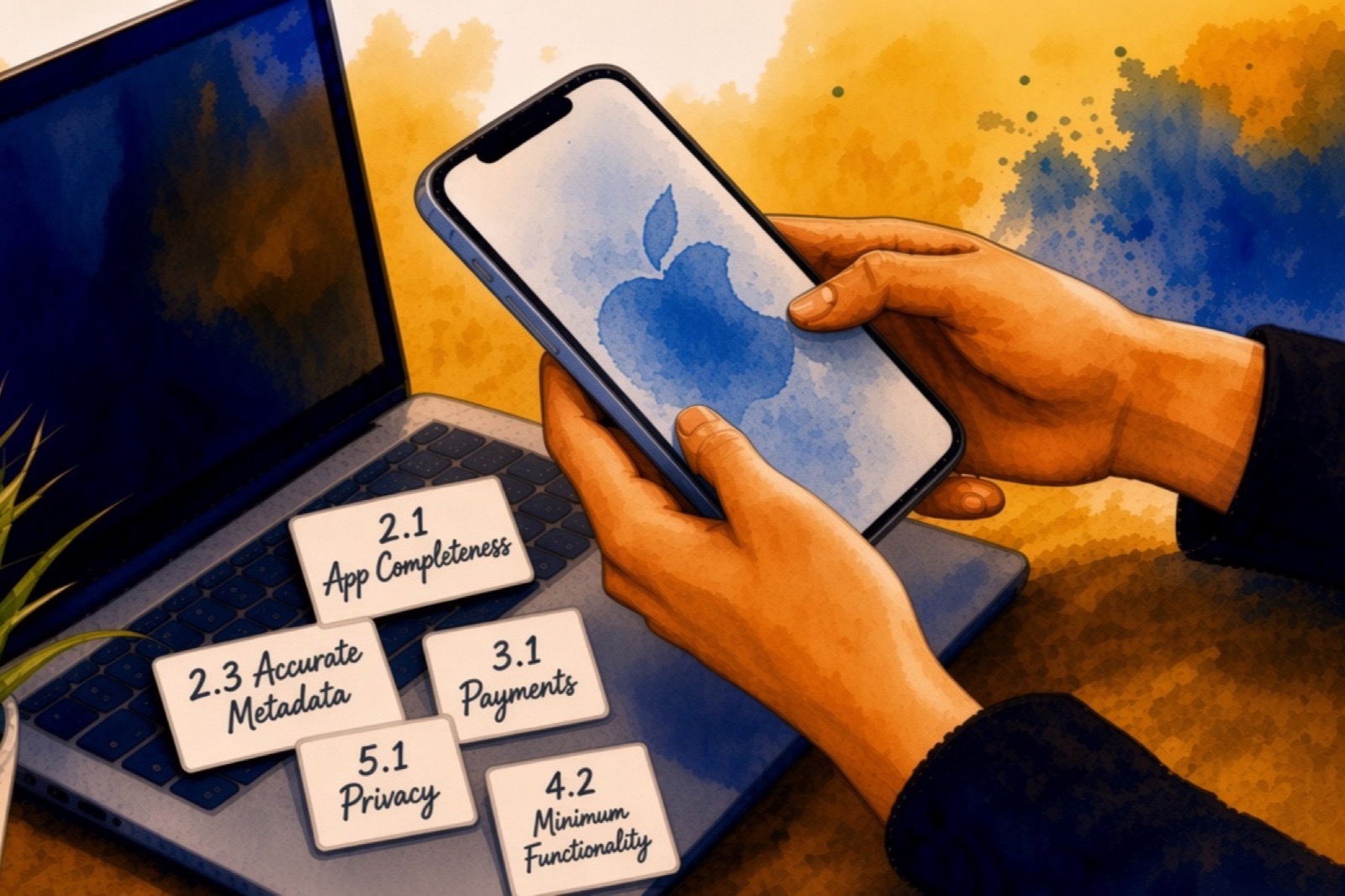
The App Review Guidelines cover a lot of ground. A recipe timer and a medical-device companion somehow share the same rulebook. This guide turns Apple’s rules into checks you can run on a real app before you submit it. It focuses on what a reviewer must be able to see, access, and verify.
Apple’s guideline page is the source of truth. It is long because it covers every kind of app. You do not need to memorize it. You do need to find the parts that apply to your app, test them in the release build, and leave clear notes when a reviewer cannot find the answer alone.
App Review is easier when the reviewer can see the same app you see, make the same purchase path you tested, and read the same story in every submission field.
Start with the reviewer’s first ten minutes
Apple says submissions should be final versions, tested on a device, with complete metadata and working URLs. Guideline 2.1 also says account-based apps must give App Review full access through an active demo account or a fully featured demo mode. In plain terms, a reviewer must be able to open the app and reach its real purpose without needing your team on a video call.
Check the first ten minutes in this order. This short rehearsal catches many small but costly problems.
- Open the release build on a physical device. Test first launch, onboarding, the main task, sign-in, account recovery, and the paths you mention in the store listing. A simulator is useful, but it is not the phone in a reviewer’s hand.
- Keep every required service available. Turn on the production or review backend, test account, sample data, and hardware integration. If your app needs a sample QR code, device, or region-specific setup, say so in the review information.
- Tap every link. This includes support and privacy-policy links in the app and the App Store listing. Apple’s App Review guidance calls out functional links and current support contact information.
- Follow the hard-to-find path. Test paywalls, long-press actions, admin-only screens, content behind location rules, and anything enabled by configuration. A feature can work perfectly and still be invisible during review. Hide-and-seek belongs in a garden, not an app binary.
- Read the listing beside the app. Check that screenshots, previews, feature claims, prices, and privacy information describe the build you selected for review.
These checks cannot promise approval. They do make the submission reviewable, which is the part you control.

Give the reviewer a short map
In App Store Connect, open App Review and complete the review information for the version you are submitting. Apple asks for contact details and, when needed, sign-in credentials and notes. The submission instructions confirm that you choose the build, select Add for Review, then send the draft with Submit for Review.
Your notes should answer three questions:
- How do I get in?
- Where is the feature you need to assess?
- What special setup, permission, or limitation should I know about?
You can adapt this structure:
Main test path: Open [tab or screen], sign in with the demo account,
then go to [screen] and complete [action].

Demo account: [email] / [password]. It has access to [features].

Purchases: Find [product] at [screen]. Use [steps] to reach it.

Permissions: The app requests [permission] when [trigger] because
[plain-language reason]. If declined, [fallback behavior].

Special setup: [hardware, location, sample code, or test condition].
Do not write a novel here. A two-minute route through a non-obvious app is much more useful than a product pitch. If the reviewer has to guess how to reach your important feature, your notes have not done their job.
Review Notes are not a place to impress Apple. They are a map for removing uncertainty.
Use the five Apple sections as risk buckets
Apple groups the App Review Guidelines into Safety, Performance, Business, Design, and Legal. Instead of reading the page from top to bottom every release, start with the bucket that best matches each feature you are shipping. Then follow the linked guideline to its actual wording and exceptions.
Safety: protect people, not just screens
Safety covers content that may harm, offend, or mislead users, plus special cases such as kids, health, and user-generated content. If people can post, comment, message, or upload material, Guideline 1.2 requires a way to filter objectionable material, report it, block abusive users, and contact you.
Do not just paste that list into a planning document. Test the report path, the block path, and the support contact as a regular user. Decide who handles reports and how you will respond. It is not glamorous work, but it is easier to do before someone needs help. Apple also says you are responsible for removing material that violates the guideline, your terms, or your community standards.
Apps for children and apps handling health information carry extra rules. Read the relevant Safety and Privacy passages directly before you submit. A generic pre-submit checklist cannot decide whether your medical claim, age control, or moderation system meets the rule.
Performance: submit a finished, truthful app
Performance does not only mean frame rate. It also covers a complete app, accurate metadata, hardware compatibility, and software rules. Under Guideline 2.3, descriptions, screenshots, previews, privacy information, and listed features must match the real app experience.
Check the submitted build against each screen in your product page. Screenshots should show the app in use, not only a splash screen or login page. Do not leave placeholder text, dormant features, test URLs, or “coming soon” promises in the build. I have left one old screenshot in a release candidate before. It is a very efficient way to turn one forgotten button label into a whole afternoon.
Apple also says you are responsible for the parts supplied by ad networks, analytics services, and other third-party SDKs. Include them in your release check. “That came from a dependency” is a good debugging detail, but it does not transfer responsibility during review.
Business: make the purchase path explain itself
If your app sells digital goods, features, subscriptions, game currency, or premium content, start with Apple’s payments rules. Guideline 3.1.1 says that unlocking functionality within the app must use in-app purchase unless an exception applies. The exceptions are detailed and can vary by storefront, so do not borrow a payment flow from another app and assume it travels well.
For auto-renewable subscriptions, Apple says you must clearly describe what the customer gets for the price before asking them to subscribe. Test the actual subscription screen, not its Figma ancestor. Make the product visible to the reviewer, verify restore behavior, and make sure the price and terms shown in the app match the product-page copy.
If your business model is not obvious, Apple asks you to explain it in metadata and App Review Notes. A concise note such as “users buy physical appointments, not digital content” can prevent the reviewer from having to infer what your checkout does. Only make that statement if it accurately describes your app and you have checked the relevant guideline.
Design: prove the app is more than a wrapper
Apple’s minimum functionality rule says an app should provide features, content, and interface that go beyond a repackaged website. The guideline also rejects apps that are primarily marketing material, web clippings, content aggregators, or collections of links.
This does not mean every app needs fireworks in its tab bar. It means the native app needs a clear, useful job. Before submission, write one plain sentence that describes the task a person can complete in the app. Then make sure the opening path lets the reviewer reach that task. This is also a helpful test for crowded categories, where “we have a nicer UI” may not show a meaningful difference.
Legal: reconcile privacy, permissions, and data sharing
Privacy work often gets split across people. One person owns the privacy policy, another answers App Store Connect questions, and a third added the analytics SDK six months ago. Apple still sees one app. Check its privacy rules: they require an accessible privacy-policy link both in App Store Connect and inside the app. The policy must state what data you collect, how you collect and use it, who receives it, and how users can revoke consent or request deletion.
Run this four-surface check before release:
- The build: List the permissions, SDKs, sign-in providers, and network calls in the version you are uploading.
- The App Privacy details: In App Store Connect, disclose the data your app and third-party partners collect, whether it is linked to the user or used for tracking, and why it is collected.
- The privacy policy: Make sure it describes the behavior you found in the build, including sharing and retention or deletion.
- The permission moment and Review Notes: Explain why a permission appears when it does, what happens if the user says no, and any sensitive flow a reviewer should test.
Apple says purpose strings must clearly and fully explain why the app needs user data. It also says apps must disclose and get explicit permission before sharing personal data with third-party AI. These are separate checks. A permission prompt explains access on the user’s device. It does not automatically explain every later data transfer.
One app can have four privacy descriptions. They need to tell one truthful story.

What changed in the 2026 App Review Guidelines
Apple’s June 8, 2026 update revised the guidelines in a few places that deserve a pre-release check. The update clarified kid and teen safety guidance in the introduction, developer responsibilities for user-generated content under 1.2, the basis and examples under 4.3(a) and 4.3(b), and that Live Activities may not be used to spam, phish, or send unsolicited messages.
You do not need to rebuild an unaffected app just because a guideline changed. You should check whether your release touches an affected area:
- User-generated content: Check moderation, reporting, blocking, support contact details, and your response plan.
- Crowded or templated app ideas: Read the current language in Guideline 4.3. Be able to show what makes the app meaningfully different or useful.
- Live Activities and notifications: Confirm every message is related to the app’s function, respects consent, and is not promotional spam or a phishing route.
- Kids and teen experiences: Revisit the introduction, age rating, data handling, and any parental controls that apply to the audience.
Apple describes the guideline page as a living document. Put it on the release checklist for major launches, new feature types, payment changes, or new SDKs. The page’s “Last Updated” date takes seconds to check. That is kinder than finding an update after release.
If Apple says no, diagnose the cited guideline
A rejection gives you a place to start. It does not mean you must rewrite the whole app in a panic. Read Apple’s message with the cited guideline. Then identify whether the problem is in the app build, store listing, configuration, reviewer access, or missing review notes.
- Reproduce the path. Use the reviewer’s device details or steps when Apple supplies them. Test the exact build and demo account that went to review.
- Find the mismatch. Does the app fail, does the listing claim too much, is a purchase unavailable, or does the review account lack access?
- Fix the right thing. Update metadata or review notes when the binary is fine. Upload a new build when code, bundled configuration, or in-app content changed.
- Reply with facts. State what changed, where it can be found, and how to test it. If you need clarity, ask a focused question in App Store Connect.
- Appeal only when discussion does not resolve a misunderstanding. Apple provides an appeal path, but a clear correction or explanation is usually the first step.
The lesson is not “never ask questions.” Do not resubmit the same unresolved problem with a new build number and a hopeful shrug.

For the exact upload and App Store Connect steps, use our guide to submitting an app to the App Store. If you are still setting up the developer account, start with how to create an Apple Developer account.
A release-day App Review checklist
Run this list against the specific version you are submitting:
- The release build launches and its main task works on a physical device.
- Required backend services, demo accounts, sample data, and hardware are available.
- Support and privacy-policy links work in the app and listing.
- App Store metadata, screenshots, previews, prices, and feature claims match the build.
- App Privacy details and the privacy policy match the app and every bundled SDK.
- Permission prompts explain the real reason for access, and declined permissions have a sensible fallback where possible.
- Account deletion, sign-in options, payments, subscriptions, user-generated content, or kids features have been checked against the relevant Apple rules.
- In-app purchases are complete, visible, and testable by the reviewer.
- App Review Notes contain a working test route and explain non-obvious behavior.
- You checked the latest App Review Guidelines for changes that affect this release.
FAQ
What are Apple’s App Review Guidelines?
They are Apple’s current rules for apps submitted to the App Store. Apple organizes them into Safety, Performance, Business, Design, and Legal. The full text and any current exceptions are on Apple’s App Review Guidelines page.
Do App Review Notes matter?
Yes, when a reviewer needs credentials, special hardware, a particular path, or context for a non-obvious feature. Notes cannot make a noncompliant app compliant, but they can make a compliant app testable.
What are common App Store rejection reasons?
Apple’s pre-submission guidance points to crashes and bugs, incomplete or inaccurate metadata, broken links, missing reviewer access, unavailable backend services, and unclear explanations of non-obvious features or purchases. The exact reason depends on the app and the guideline Apple cites.
Does following this checklist guarantee approval?
No. Apple evaluates the actual submitted app, listing, account, and applicable rules. Use this checklist to catch common gaps, then read the official guideline sections that apply to your features.
When should I recheck Apple’s guidelines?
Check before a new app submission, a feature that changes data use or payments, a new SDK, a major release, and any time Apple updates the guideline page. You do not need to reread every section for a small bug fix that changes none of those things, but you should verify the current rules when the release changes the app’s behavior.
Conclusion
Do not treat the App Review Guidelines as a final hurdle. Use them to test the app through a reviewer’s eyes. Can they enter, reach the promised feature, understand permissions and purchases, and see truthful information everywhere the app appears?
Check the relevant rule, test the release build, and write the short note that removes the last bit of guesswork. It will not promise an approval. It will give the reviewer a real, working app to review.
Keep Reading

App Tracking Transparency Explained for App Founders
App Tracking Transparency explained for app founders: learn when ATT applies, how Apple’s permission prompt works, and how to avoid common review mistakes.
App Privacy Policy Checklist: What to Include Before Launch
Use this app privacy policy checklist to cover data collection, ads, analytics, payments, account deletion, and Apple and Google store disclosures.