How to Publish an App on the Google Play Store: 2026 Guide
Learn how to publish an app on the Google Play Store, from account setup to a live release.
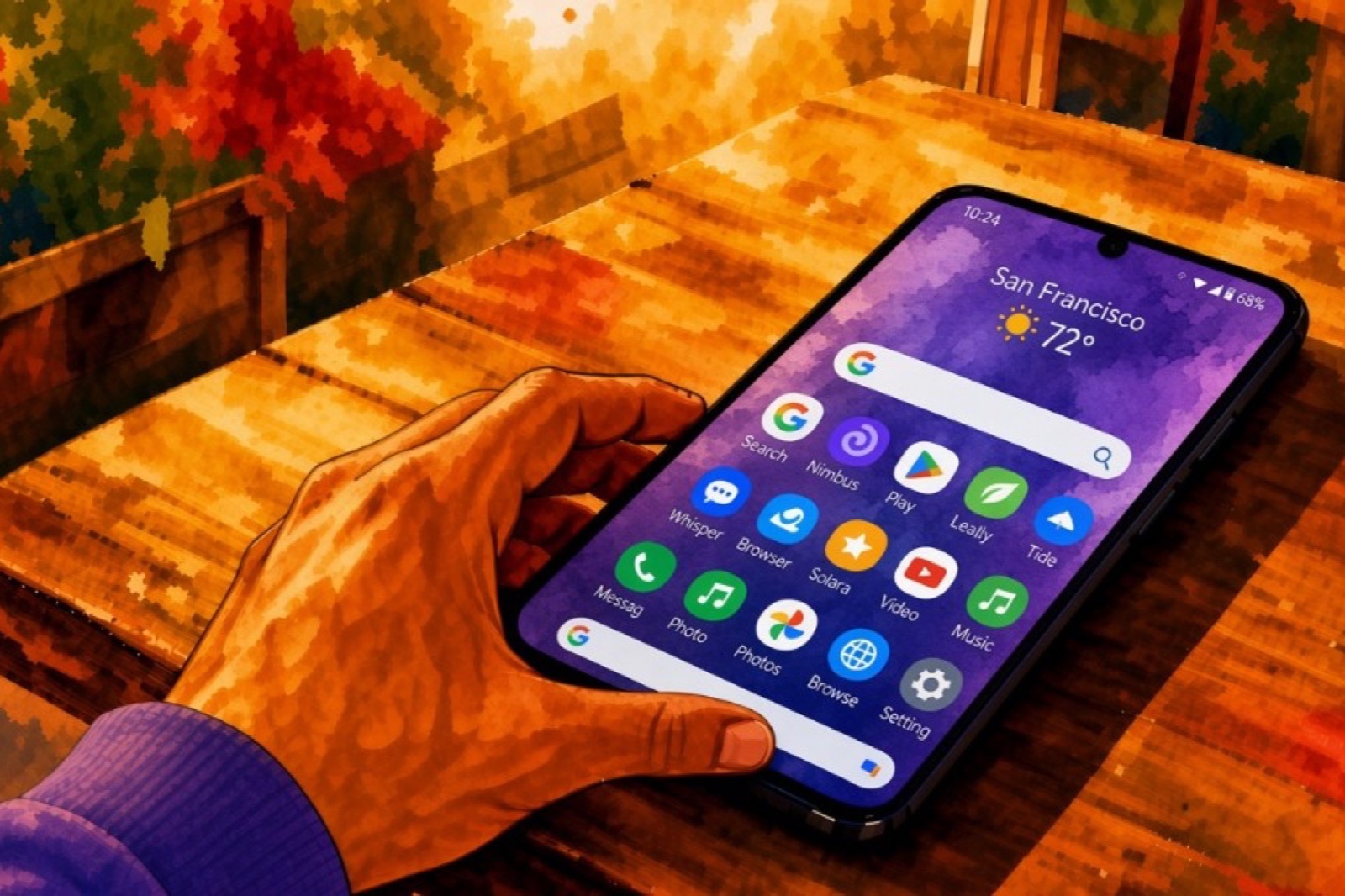
I once thought how to publish an app on the Google Play Store came down to one big button. It does not. This 2026 guide takes you from a Play Console developer account to a production rollout. You will prepare the store listing and App content declarations, upload a signed Android App Bundle, and complete closed testing when Google requires it.
This guide covers a new phone app. Wear OS, Android TV, Automotive, and XR use the same Console, but they have extra screenshot and API-target requirements.

What you need before you start
You need more than a successful Gradle build. Before Play Console lets you use production, you need an account, verified identity, a real Android device for many personal accounts, and a release-ready bundle.
A Play Console developer account
You must be at least 18. Sign up with a Google Account, accept the Developer Distribution Agreement, and pay the US$25 one-time registration fee. Google lists MasterCard, Visa, American Express, Discover (United States only), and Visa Electron (outside the United States). Prepaid cards are not accepted.
Google may also ask for a government ID and a credit card, both under your legal name. If Google cannot verify that information, it does not refund the fee. Once verified, Google may show your legal name and address from the Payments profile on Play.
Choose Personal or Organization during signup. Organization accounts need extra documents. These often include a D-U-N-S number, Dun & Bradstreet’s ID for a business, a government ID, and an organization registration document. Personal accounts need a government ID. The details must match the Google Payments profile linked to the account, as described in Google’s identity verification help.
You also verify a contact email and, depending on account type, a phone number and website. You cannot submit apps for consideration on Google Play until these checks are complete.
Device verification for new personal accounts
If you created a new personal account, Google also asks you to prove that you can access a real Android phone. Starting in early 2024, new personal accounts must complete device verification in the Play Console mobile app before an app can go live.
Use a physical, non-rooted device running Android 10 or later. Emulators and rooted phones do not count.
- Sign in to Play Console on the web as the account owner.
- On Home, find Verify that you have access to an Android mobile device and select View details.
- Scan the QR code to install or open the Play Console app.
- Sign in as the same owner, select the developer account, and tap Verify.
Google says this usually takes less than a minute. The same phone can verify more than one account. Google does not collect the phone number during this step.
A signed Android App Bundle that Play will accept
New apps on Google Play must upload an Android App Bundle (.aab), not a new APK. Play App Signing has been required for new apps since August 2021. Google keeps the app-signing key, and you keep an upload key. As of August 31, 2026, new phone apps and app updates must target Android 16 (API level 36) or higher. The target API is the Android version your app declares it supports. Wear, TV, Automotive, and XR have different minimums.
Check that Help Center table before you archive a release. API requirements change over time.
Create the app in Play Console
Once the account is ready, create the app record. The Dashboard will then show the setup tasks needed before release.
- Open Play Console and select Home > Create app.
- Choose a default language and the name as it should appear on Google Play (you can change this later).
- Mark it as an app or a game, and as free or paid.
- Add the support email users will see.
- Acknowledge the Developer Program Policies and US export-laws declarations, and accept the Play App Signing Terms of Service.
- Select Create app.
The dashboard then lists store listing, App content, testing, and launch tasks. Complete them as a checklist.
Choose the package name carefully. This is the application ID, such as com.yourcompany.yourapp. Google says package names are unique and permanent. You cannot delete one and reuse it later.
The package name is the one field you do not get to redo.
Complete the store listing
Your store listing is what people see on Google Play. It is shared across testing tracks, so testers see the same name, screenshots, and descriptions as future users.
Open Grow users > Store presence > Main store listing and fill in the product details:
| Field | Limit | What it is |
|---|---|---|
| App name | 30 characters | The title on Google Play |
| Short description | 80 characters | The first text on the Play Store app listing |
| Full description | 4,000 characters | The expanded listing copy |
Choose a category and tags. Google uses them to help people find the listing in search and browse. A support email is required on Store settings. A website is optional.
Graphics Play will not let you skip
Google’s preview-asset requirements are specific. The short version:
- App icon: 512×512, 32-bit PNG with alpha, 1,024 KB max. This is the Play listing icon, not a replacement for the launcher icon in the bundle.
- Feature graphic: 1024×500, JPEG or 24-bit PNG with no transparency. Required to publish the listing. Keep important content toward the center; Play crops this asset in more than one layout.
- Screenshots: at least two across device types to publish. JPEG or 24-bit PNG with no alpha, between 320px and 3,840px, and the long side cannot be more than twice the short side.
You can add up to eight screenshots per device type. For recommendation surfaces, Google also asks apps to supply at least four 1080p screenshots in 16:9 or 9:16. That set is for promotional eligibility, not the minimum needed to publish.
Do not fill the name or descriptions with repeated keywords. Google’s metadata policy treats that as a bad user experience, and it can suspend the app. “Best #1 FREE download now” is a slogan, not a useful short description.
Complete App content declarations
The App content page (Policy and programs > App content) is where you tell Google what the app is, who it is for, and how a reviewer can access it. Incomplete declarations can block a release even when the app bundle is ready.
Privacy policy
Add a live URL. The policy has to apply to this app and explain how you collect, use, and share user data. Apps that access sensitive permissions or data need the policy on the listing and in the app. Apps that target children need a privacy policy even if they collect nothing interesting.
Data safety
If the app will run on a closed, open, or production track, complete the Data safety form. Declare the data types you collect or share, whether they are required, whether they are encrypted in transit, and whether users can request deletion. Internal-testing-only apps are exempt until you leave that track. Complete it even if you collect no user data; the form can say that.
Match the form to the SDKs in the app bundle. An SDK is code from another company that your app uses. A crash reporter still counts, even if you forgot it was included.
Ads, content rating, and audience
Declare whether the app contains ads (including house ads and most ad SDKs). Complete the content-rating questionnaire so the listing is not stuck as Unrated. Declare the target age group honestly. If children are in the audience, Families policy applies, and that is a different, stricter checklist.
Sign-in details for reviewers
If any part of the app is behind a login, membership, or other restriction, add working credentials and navigation notes under Sign-in details. You can add up to five instruction sets. Keep demo passwords active during review.
Google’s prepare-for-review guidance is blunt: reviewers need a path through the product. If they cannot reach a feature, they cannot review it.
Build a signed Android App Bundle
Play generates per-device APKs from your bundle. You build and sign one .aab, then Play creates the device-specific APKs.
In Android Studio, use a release build with debuggable / isDebuggable set to false, logging stripped for production, and a versionCode (the integer Play uses to tell that this build is newer) that increases on every upload. Play Console will not accept a versionCode above 2,100,000,000.
- Confirm
targetSdkmeets the current Play floor (API 36 for new phone apps as of August 31, 2026). - Build a signed bundle (Build > Generate Signed Bundle / APK, then choose Android App Bundle).
- Keep the upload key somewhere safe. Play App Signing holds the app-signing key, but you still need the upload key for future bundles.
- Test the release variant on a real phone and, if you support them, a tablet.
On the first release, Play Console walks you through Play App Signing. You can use a Google-generated app-signing key or one you supply. After you publish to an open track, that signing key is fixed.
Apps created before August 2021 can still ship APK updates. That exception is not for a brand-new listing in 2026.
Run a closed test (personal accounts)
Older “just upload an APK” guides often miss this rule.
If your personal developer account was created after November 13, 2023, Google disables Production and Pre-registration until you finish a closed test. You need at least 12 testers opted in continuously for 14 days, then you apply for production access. The testing-requirements article has the current requirements.

Closed testing is a gate for many personal accounts, not a warm-up lap you can skip.
Organization accounts are not named in that personal-account requirement. Follow what Play Console shows on your Dashboard. If production is locked, complete the required closed test before applying for production access, which gives you permission to use the Production track.
Internal, closed, and open are not interchangeable
| Track | Who can install | Typical use | Notes |
|---|---|---|---|
| Internal testing | Up to 100 chosen testers | Fast smoke tests | Optional. Does not satisfy the 12-tester rule. Available before app setup is complete. |
| Closed testing | People on your email list or Google Group | Required closed test for new personal accounts | App setup must be complete first. |
| Open testing | Anyone who joins from Play | Public beta | Unlocks after production access. |
| Production | Users in your selected countries | The live app | Locked until production access is granted, for those personal accounts. |
A tester who is opted into internal testing cannot join the closed or open track until they opt out of internal. If you invite the same twelve people to both, they do not count toward closed testing until they leave internal.
Testers who opt in, leave before day 14, and come back later do not carry leftover days. The 14 days have to be consecutive.

How to start the closed test
Finish store listing and App content first. A closed release will not roll out while required setup is still red on the Dashboard.
- Go to Test and release > Testing > Closed testing, then Manage track.
- Create a release, upload the app bundle, add release notes (up to 500 characters per language), and roll it out. Resolve every item under Errors summary. Warnings can ship; errors cannot.
- On the Testers tab, add people by email list or Google Group (
yourgroupname@googlegroups.com). - Add a feedback URL or email.
- Copy the opt-in link and send it to testers.
The opt-in link only appears when the app is Published, not Draft or Pending publication. After you publish an open, closed, or internal test for the first time, Google says the test link can take several hours to show up. Testers cannot search for a pre-production closed test on Play. They need the URL.
Ask testers to stay opted in for the full 14 days. Recruit a few extra people in case someone opts out before the requirement is complete.
Use this time to check crash stats, read testing feedback, and run a pre-launch report if Console offers one. When you apply for production, you must summarize tester feedback and what you changed.
Apply for production access
When 12 testers have been opted in for the last 14 days continuously, open the Dashboard and select Apply for production. The form has three parts:
- About your closed test: how hard recruiting was, whether testers used the product, how you collected feedback, and a summary of that feedback.
- About your app/game: audience, value, and a first-year install range. Google says this is not shown on the public listing.
- About your production readiness: what you changed after testing, and why you think it is ready.
Click through each section. Leaving the page without Next or Apply discards the draft.
Google reviews the application and emails the account owner. That review usually takes seven days or less, and can take longer.
If tester activity was low, Google can ask you to keep testing. Fix policy problems before you apply.
Roll out to production
When production access is approved, Test and release > Production becomes available. Open testing becomes available too. You still have to create a production release; access alone does not make the app live.
- Open Production and select Create new release.
- Upload the production app bundle, or add the tested one from the library.
- Name the release for yourself (users never see this) and enter user-facing release notes.
- Choose countries and regions.
- Review the preview. Fix every error.
- Select Start rollout to production.
For a first production release, that last click publishes to Google Play users in the countries you selected after review. Staged percentages are for later updates, not the first production release.
You cannot start a new release while an unfinished one is hanging around. Roll a staged release to 100%, or discard the unpublished one from Publishing overview, then continue.
After you submit: review and status
Play Console shows three layers of status: the app, the update, and individual items (a release, a content rating, a listing experiment). Draft means the app has no public presence yet, or the first attempt was rejected. In review is the update or item state: Google is looking at those changes. Production means users in your selected countries can install the app.
For some developer accounts, Google takes longer to review. The publish-your-app article says this can mean up to seven days, or longer in exceptional cases. Do not plan a launch based on an assumed same-day approval.
If the update is rejected, Google says you can fix the issue and resubmit, or appeal. Common early problems include broken functionality, missing reviewer credentials, and listings that do not match the app. Read the email carefully, then fix the item it names.
Review is not a promise that following a checklist is enough. It is a review of this binary, this listing, and this account.
Standard publishing releases approved updates as soon as Google processes them. Managed publishing holds approved changes until you press Publish changes on Publishing overview. Use managed publishing when you need to choose the release date.
FAQ
How much does it cost to publish on Google Play?
Google charges a US$25 one-time Play Console registration fee. That is not a yearly membership. Selling the app or in-app products is a separate payments setup, with Google’s service fees on those transactions.
Do I really need 12 testers for 14 days?
If you have a personal developer account created after November 13, 2023, yes: a closed test with at least 12 testers opted in continuously for the preceding 14 days, then a production-access application. Internal testing does not count. Check your Dashboard if you are unsure which rules apply to the account.
Can I upload an APK instead of an AAB?
Not for a new app. Google has required Android App Bundles for new Play apps since August 2021. Legacy apps created before that date can still add APKs when updating.
What is the difference between internal testing and closed testing?
Internal testing is a fast track for up to 100 trusted testers and can start before app setup is finished. Closed testing is the broader, setup-complete track. For many new personal accounts, closed testing is the requirement that unlocks production. Open testing is the public beta, and it waits until production access exists.
How long does Google Play review take?
Production-access review usually takes seven days or less. App and update review can also take up to seven days, or longer for some accounts. Leave room in the calendar for questions, extra testing, and a resubmit.
Does completing every Console task guarantee the app will be approved?
No. You still have to comply with the Google Play Developer Program Policies. Following this guide gets the package onto Google’s desk in the right shape. It does not decide the review.
Conclusion
Publishing a first Android app is a sequence: verify the developer account, complete the listing and App content forms, upload a signed Android App Bundle that meets the current API requirement, run the closed test if Console requires it, apply for production access, then roll out. Complete each step before moving to the next.
Recruit testers early. The 14-day clock starts only after they opt in. The graphics, Data safety answers, and demo login should match the app in the bundle. That gives reviewers an accurate app to assess.
Further reading: How to fix common Google Play Developer Console errors and how to add a privacy policy app screen.
Keep Reading
App Store Connect Checklist: Before You Submit an iOS App
Use this App Store Connect checklist before submitting an iOS app: build, metadata, privacy, App Review notes, pricing, and final submission checks.
How to Submit an App to the App Store: 2026 Guide
Learn how to submit an app to the App Store, from App Store Connect and Xcode setup to review requirements, approval, release, and common fixes.